

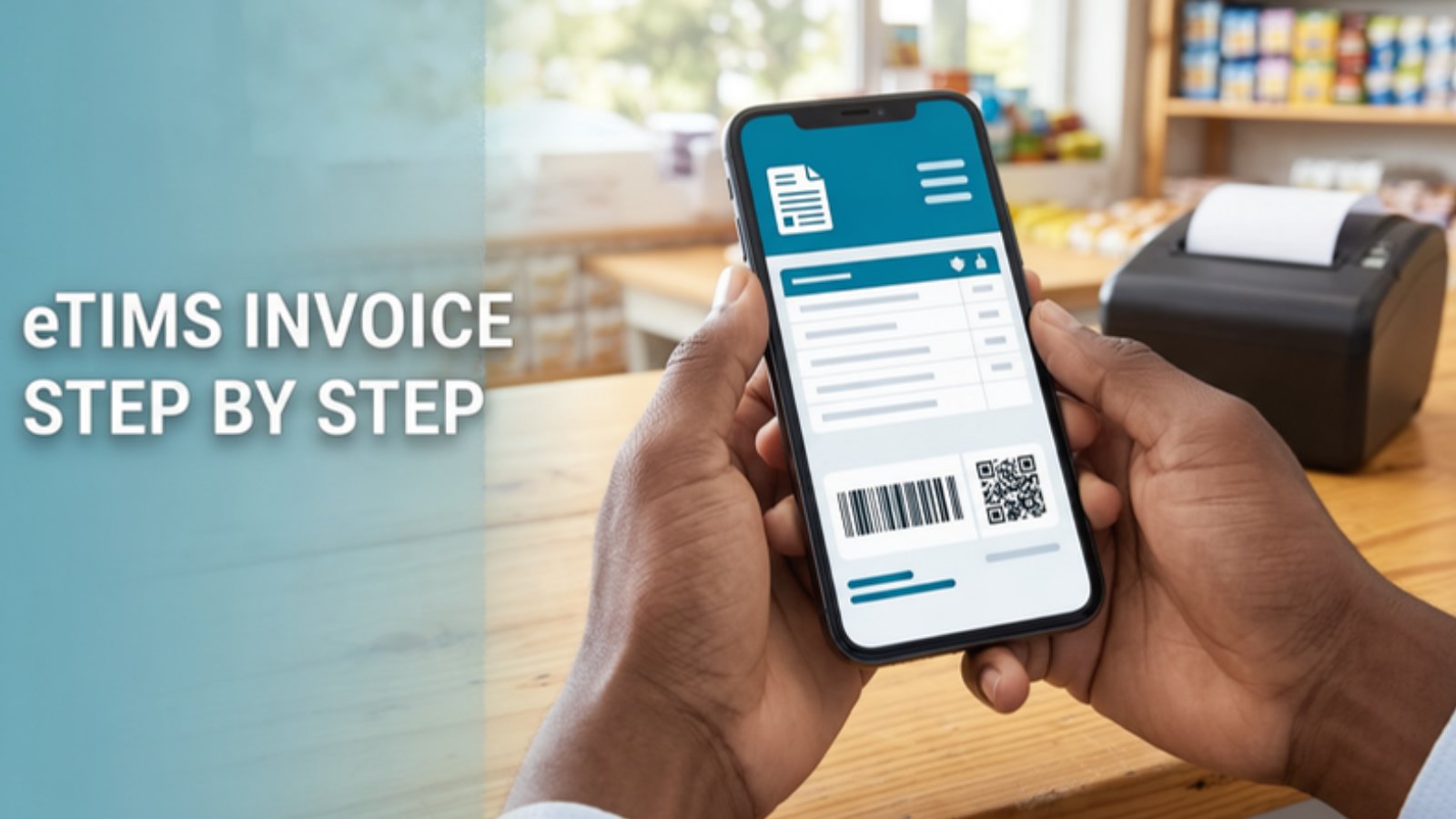
Most people who search for how to generate eTIMS invoice steps are not looking for theory. A customer is waiting, or an accountant has rejected a receipt. This guide walks through each route step by step: USSD *222#, eCitizen, the eTIMS Online Portal and the eTIMS Client, plus credit notes, checking an invoice and fixing common errors.
If you are still deciding whether eTIMS applies to you, or which solution you should be on, start with our complete guide to eTIMS in Kenya. This article assumes you are already registered and want to get invoices out correctly.
KRA updates its screens from time to time, and USSD menu numbers in particular have changed, so we describe each flow in general terms. If a screen looks different, follow the prompts and KRA’s current user guide.
Before You Generate Your First Invoice
A few minutes of preparation saves hours of corrections later:
- Use the phone number linked to your KRA PIN. One-time passwords and invoice SMS messages go to that number. For USSD, dial from the SIM registered on your PIN.
- Get the buyer’s KRA PIN. If your customer is a business, its PIN is what allows it to claim the purchase as an expense. You can usually invoice a buyer without a PIN, but that buyer generally cannot use the invoice to support a deduction.
- Know what you are selling. Have a clear description, quantity and unit price. On the portal and the Client, you register items before you can sell them.
- Stick to one solution. Credit notes can only be raised in the solution where the original invoice was created, so jumping between channels makes corrections harder.
How to Generate eTIMS Invoice on USSD *222#
eTIMS Lite on USSD is meant for non-VAT individuals and small businesses, and it works on any phone without internet. The general flow is:
- Dial *222# from the SIM card linked to your KRA PIN.
- Open the KRA services menu and select the eTIMS option. If it is your first time, you will be asked to register with your KRA PIN and set a PIN for future sessions.
- Choose to create a sales invoice.
- Enter the buyer’s KRA PIN, or their name if they do not have a PIN.
- Enter the product or service, then the quantity and unit price. Add further items if prompted.
- Review the summary carefully and confirm.
- You will receive an SMS with the invoice number and a link that opens the formatted invoice. Forward that link or the invoice to your customer.
USSD sessions time out, so have the buyer’s details ready before you dial. If a session drops, check your SMS for an invoice number before trying again.
How to Generate an eTIMS Invoice on eCitizen (eTIMS Lite Web)
The web version of eTIMS Lite suits small non-VAT businesses that prefer a screen to a keypad, and it makes downloading and emailing invoices easier.
- Log in to your eCitizen account and open the KRA eTIMS service. First-time users complete a short onboarding using their KRA PIN.
- Go to the Sales section and choose to create a new invoice.
- Enter the buyer’s details. Add the KRA PIN for business customers.
- Add each item or service with its quantity and unit price.
- Preview the invoice and check every figure.
- Generate the invoice. It is transmitted to KRA and given a unique number.
- Download the invoice as a PDF and share it with your customer. Keep a copy with your sales records.
How to Generate an Invoice on the eTIMS Online Portal
The Online Portal is designed for taxpayers who supply services only and issue a small number of invoices each month. KRA’s guidance has set this at no more than 10 invoices a month.
- Log in to the eTIMS portal using your KRA PIN as the user ID and the password you created at sign-up.
- Register your items first. Each service you sell needs to be set up with a description and the correct tax type. Get this right once and every later invoice is quicker and more accurate.
- Open the transaction or sales section and start a new sales invoice (receipt).
- Search for or enter the customer, including their KRA PIN where they have one.
- Select the registered service, enter the quantity and price, and save.
- Confirm the invoice. It is transmitted to KRA with an invoice number and QR code.
- Print or download the invoice and send it to your customer.
How to Generate an Invoice on the eTIMS Client
The eTIMS Client is downloadable software for businesses that sell goods, services or both and have no invoicing system of their own. There are Windows and Android versions.
- Install and initialise the Client. On Windows, initialisation asks for your KRA PIN, branch ID and the device serial number you submitted when you applied. These must match KRA’s records exactly.
- Set up your items and customers. Register products and services with the correct item classification and tax type, and add regular customers with their PINs.
- Open the sales screen and start a new invoice.
- Search for the customer by ID or PIN, or enter a walk-in customer.
- Add the items, quantities and prices. For goods, the Client can also track stock if you have set it up.
- Save and confirm the sale. The Client signs the invoice and transmits it to KRA.
- Print the invoice or receipt, or share it electronically.
Install updates when KRA releases them. Update guides warn that using the wrong PIN or serial number at this stage causes the update to fail.
How to Raise an eTIMS Credit Note
Once an eTIMS invoice is confirmed, you cannot edit it. If you made a mistake, the customer returns goods or a sale is cancelled, you issue a credit note against the original invoice. Ignoring it leaves the original sale in KRA’s records and inflates your declared income.
The general steps are:
- Go to the solution where the original invoice was created. A USSD invoice cannot be credited on the portal, and vice versa.
- Find the original invoice. On the web solutions this is usually done by opening the invoice from your sales list. On USSD, choose the credit note option and enter the invoice number.
- Choose a full credit note to reverse the whole invoice, or a partial one for part of it.
- Enter the reason, such as a return, a pricing error or a cancelled order.
- Confirm and keep the credit note with the original invoice.
Two rules worth knowing. KRA’s guidance allows only one partial credit note per invoice, so check your figures before you submit. And where the error is in the item classification or tax type, the usual correction is a full credit note followed by a fresh invoice with the right details.
How to Check an eTIMS Invoice
Every business should check the invoices it receives, not just the ones it issues. KRA’s FAQ gives two ways:
- Scan the QR code on the invoice.
- Use the invoice number checker on the KRA iTax portal and enter the invoice details.
When the result comes back, confirm the seller’s name, the date, the amounts and, most importantly, that your PIN appears as the buyer. An invoice that is genuine but made out to someone else, or to no PIN at all, will not support your expense claim. This matters more since KRA began validating income tax returns against eTIMS data, which we cover in our pillar guide to KRA tax compliance for small businesses.
Fixing Common eTIMS Invoice Errors
- OTPs or SMS not arriving. The phone number on your KRA PIN is out of date, or belongs to a former employee or accountant. Update it on iTax before anything else.
- Buyer PIN left out or entered wrongly. Raise a credit note against the faulty invoice and issue a new one with the correct PIN.
- Wrong tax type or item classification. Issue a full credit note and a replacement invoice, then correct the item set-up so it doesn’t happen again.
- Trying to cancel in the wrong place. Credit notes only work in the solution that issued the invoice. Go back to the original channel.
- Duplicate invoices. A dropped USSD session or a slow connection tempts people to try again. Check your sales list or SMS first, and credit any duplicate.
- eTIMS Client won’t initialise or update. The PIN, branch ID or device serial number does not match what KRA has. Changing devices needs KRA’s involvement.
- Using a solution that doesn’t fit. A goods business on the services-only portal, or a business with accounting software keying sales into a second system, will keep hitting problems. Revisit the options in our earlier piece on eTIMS for Kenyan businesses.
- Sales and eTIMS drifting apart. If M-Pesa and bank receipts show more sales than eTIMS, the gap will surface. Our guide to M-Pesa, bank and eTIMS reconciliation shows how to close it monthly.
Already filed and worried the figures don’t match? Read you filed your KRA returns, but did you file them right?
Getting eTIMS Invoices Right
Generating an eTIMS invoice takes a minute once you know your route. The real costs come from the errors around it: missing PINs, uncorrected mistakes and invoices nobody checked. For the bigger picture of who must use eTIMS, the solutions and the 2026 return validation, go back to our guide to eTIMS in Kenya.
If your eTIMS records and your books have drifted apart, or you are unsure which solution suits your business, Taxmart Kenya’s tax consultancy services include eTIMS onboarding and compliance reviews. Our accounting and bookkeeping services can keep invoices, credit notes and reconciliations in step every month.
Talk to Taxmart Kenya
📞 +254 727 434 740
📧 admin@taxmartkenya.co.ke
📍 Panari Sky Centre, Ground Floor Suite No. 1H, Mombasa Road, Nairobi
Or reach us through our contact page to book an eTIMS review.
This article is general information, not tax advice for your specific situation. eTIMS menus, rules and limits change; confirm current steps in KRA’s user guide for your solution or with a qualified adviser before acting.
1 thought on “How to Generate eTIMS Invoice: Step-by-Step for Every Route”
Comments are closed.